 Mind Forge AI
AI Image Upscaler for 2× and 4× Enlargement
Enlarge an image with AI detail enhancement. Choose 2× or 4× in the workspace.
Image upscaler
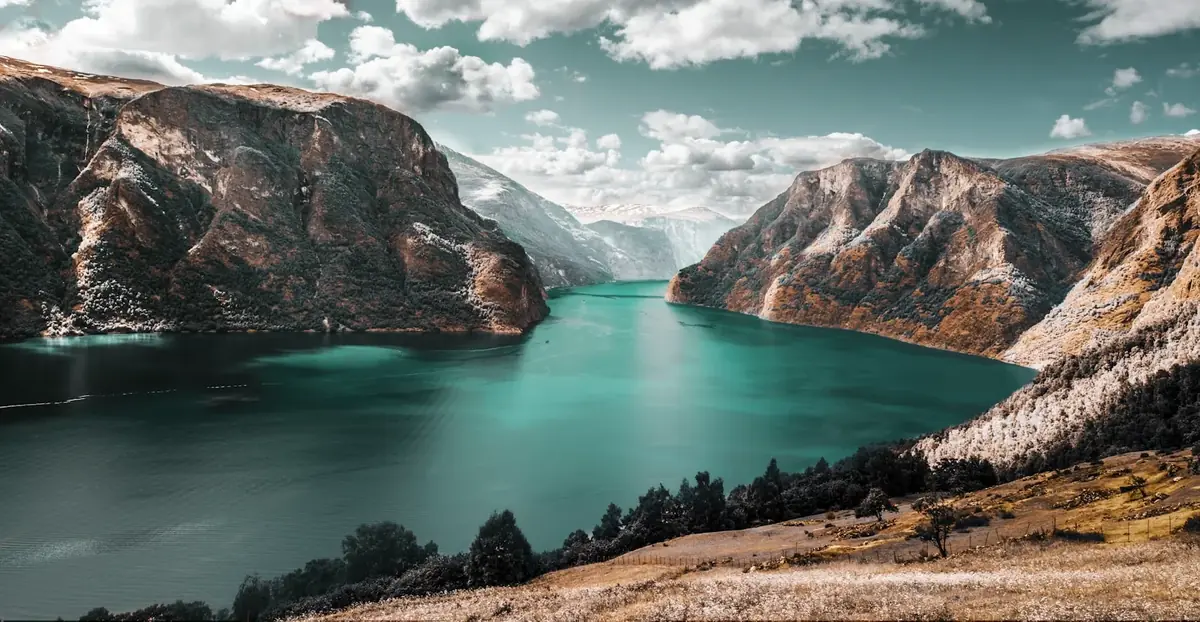
Illustrative example · upload your own media to begin
More image tools
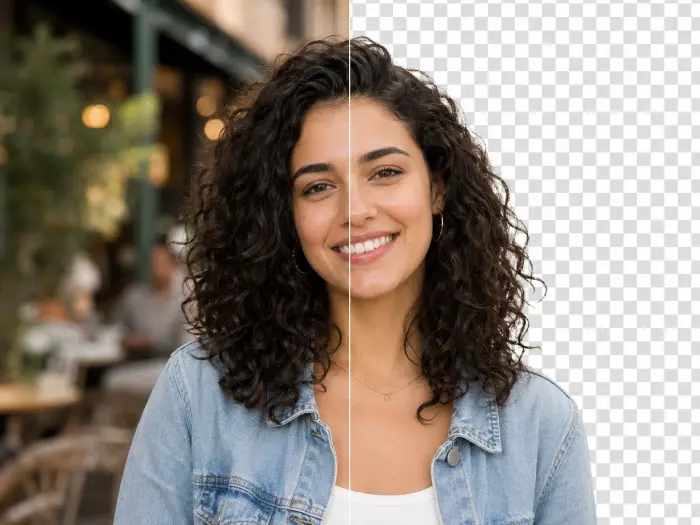
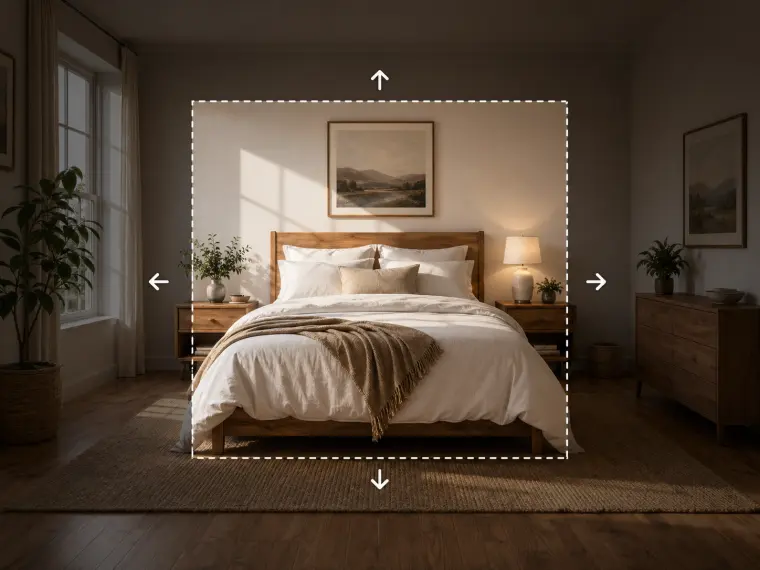


How to upscale an image by 2× or 4×
Choose the scale based on your target dimensions. Compare small lettering at full size before using an enlarged product photo.
- Upload the image and decide the output size you need.
- Select 2× or 4×; account for the longest-edge cap.
- Check the credit cost, process, then inspect faces and text at full size.
Usage example
A 1600 × 900 image at 2× is limited by the 2048-pixel longest edge, so the proportional output target is 2048 × 1152 rather than 3200 × 1800.
Limitations
The longest edge is capped at 2048 pixels for 2× and 4096 for 4×. Enhancement can reconstruct details rather than recover the original information.
Frequently asked questions
Can upscaling restore missing details exactly?
No. AI enhancement can estimate plausible details, but it cannot establish what missing pixels originally contained. Keep the original and avoid treating reconstructed lettering or faces as factual evidence.
How are tasks billed?
Review the displayed credit cost before submitting. Batch processing creates and charges separate tasks. Quality and output size affect the cost.