 AI Inpainting Editor for Selected Areas
Edit images with text. Replace backgrounds, remove objects, or change text in your photos.
Try these examples
Edit region
Upload an image to start editing.
Edit list · 0/5
Up to 5 separate regions in one task. Overlapping regions must be combined.
More image tools
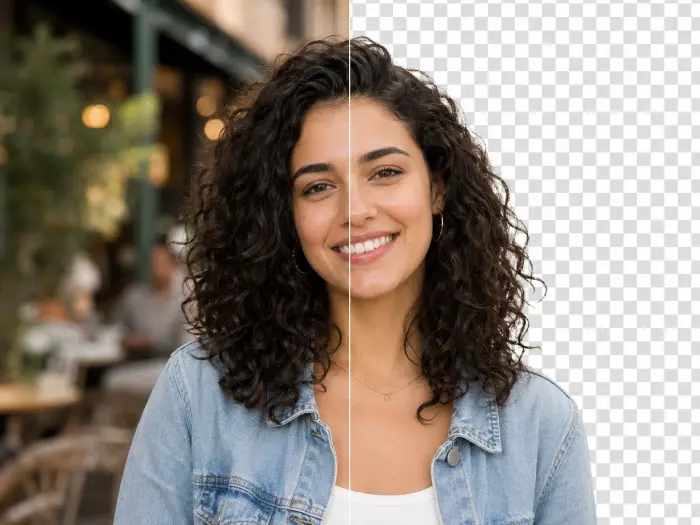 Remove Background
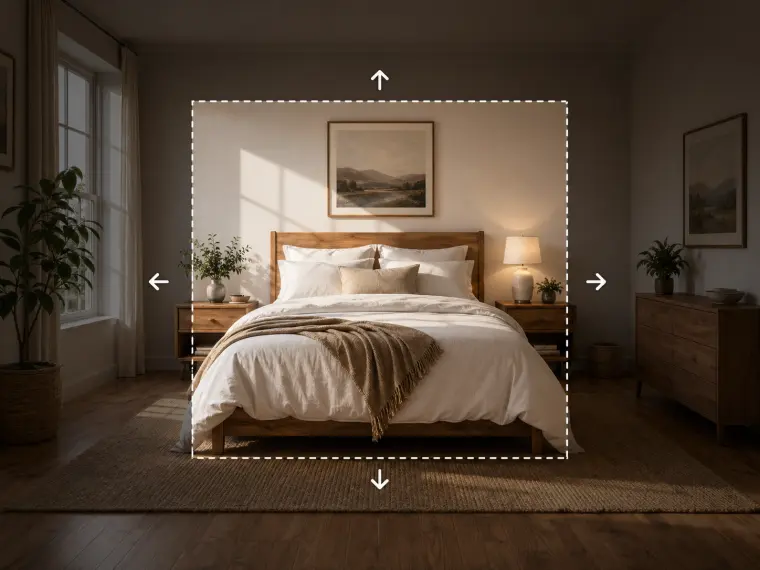 Image Expand
 Image Upscaler
 Watermark Removal
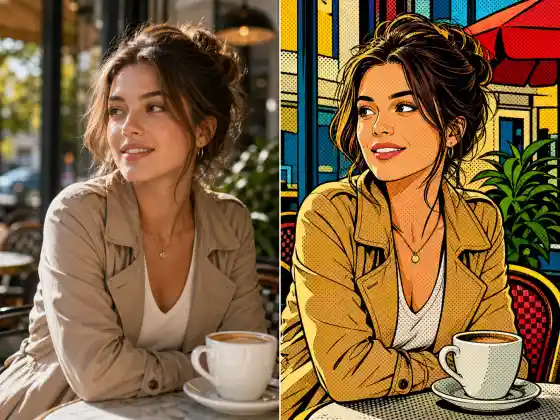 Transform Style
AI Photo Editing: Before and After
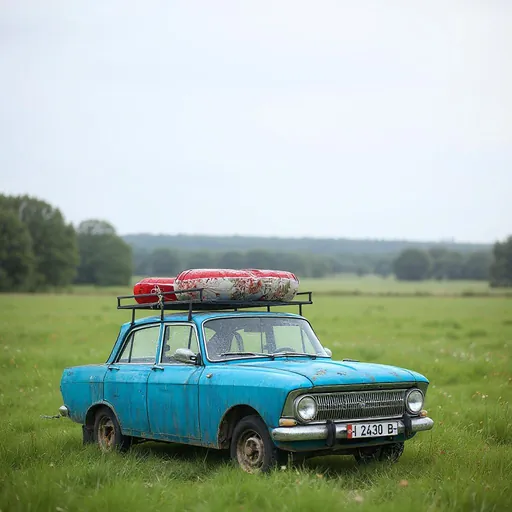
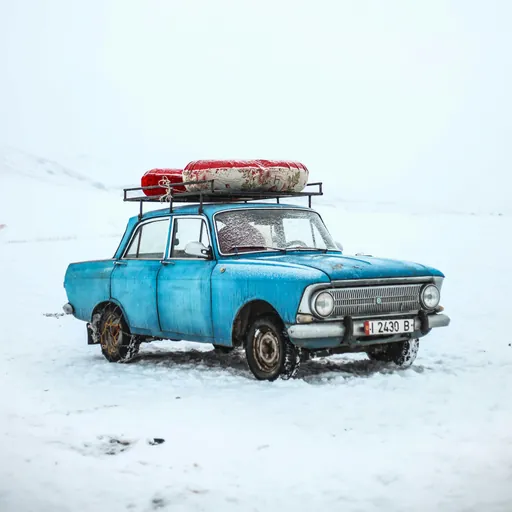 BeforeAfter
Illustrative style references, not verified outputs from this site.
How to edit part of an image with AI inpainting
Paint over the object you want to replace. Describe the replacement and the direction of the light, then check where the new texture meets the original image.
- Upload the source, paint the area to replace and describe what belongs there.
- Review the available model settings and the displayed credit cost before submitting.
- Inspect the completed result against your reference, especially: Mask boundaries matter. Inspect joins, shadows and texture; do not assume a broad mask will preserve nearby details.
Editing example and limitations
Mask the vase only. Replace it with a small blue ceramic vase, matching the table shadow and window light.
Mask boundaries matter. Inspect joins, shadows and texture; do not assume a broad mask will preserve nearby details.
How do I replace one object while keeping the rest of a photo?
Use AI inpainting in Mind Forge AI. Upload the photo, paint a mask over the object and describe its replacement. The editor's processing preserves unmasked pixels. The generated region still needs a visual check where its light, shadows and texture meet the original.
A prompt you can adapt
Replace the masked vase with a small blue ceramic vase. Match the window light from the left, the table perspective and the contact shadow. Keep the replacement inside the selected area.
What to check in the result
Inspect mask boundaries and nearby text at full size. Include enough of the original object's shadow if it also needs replacement. Choose object removal when the goal is an empty background, and text editing when the goal is new lettering.
How to choose a model and manage credits
First check that the current model supports the reference-image or local-editing mode you need. Start with a clear source and one output to review composition and details, then consider a higher resolution. Costs vary by model and settings; review the credits displayed in the workspace before submitting.
Choosing a model for products, portraits and local edits
Choose the task first, then check the models and settings offered in that workspace. Product scenes need a clear reference, portraits need a likeness check, and local editing needs a painted region. These are image-model settings configured on this site; the workspace determines the available options.
- Nano Banana 2.1 — 1K / 2K / 4K · Quality options Standard
- Seedream 5.0 Flash — 1K / 1.5K / 2K · Quality options Standard
- GPT Image 2.5 — 1K / 2K / 4K · Quality options Low / Medium / High / Xhigh / Max
Compare results using the same source image
Keep the source, prompt and target dimensions consistent. Record the model, quality, credits, submission time and output. Compare labels and proportions for products, facial features for portraits, and boundaries for local edits. Check suitability before comparing cost. These configuration details do not establish a quality ranking.
Explore the model directory · Check current model credit rates
Remove an object instead of replacing it · View pricing and credits
Frequently asked questions
How large should the mask be?
Cover the region that needs replacement, with enough context for a natural edge. Avoid masking faces, lettering or other details you want to preserve.
How does billing work?
Edits use credits. Review the displayed cost, which depends on quality and resolution, before submitting.
What does the mask control?
Local editing, object removal and text editing require a painted mask. The existing processor preserves unmasked pixels; inspect boundaries and generated details.