AI Product Photography from One Product Photo
Upload a product image and explore 9 studio, lifestyle, and natural scene presets for product presentation and marketing concepts.
How can I create e-commerce product photos from one image?
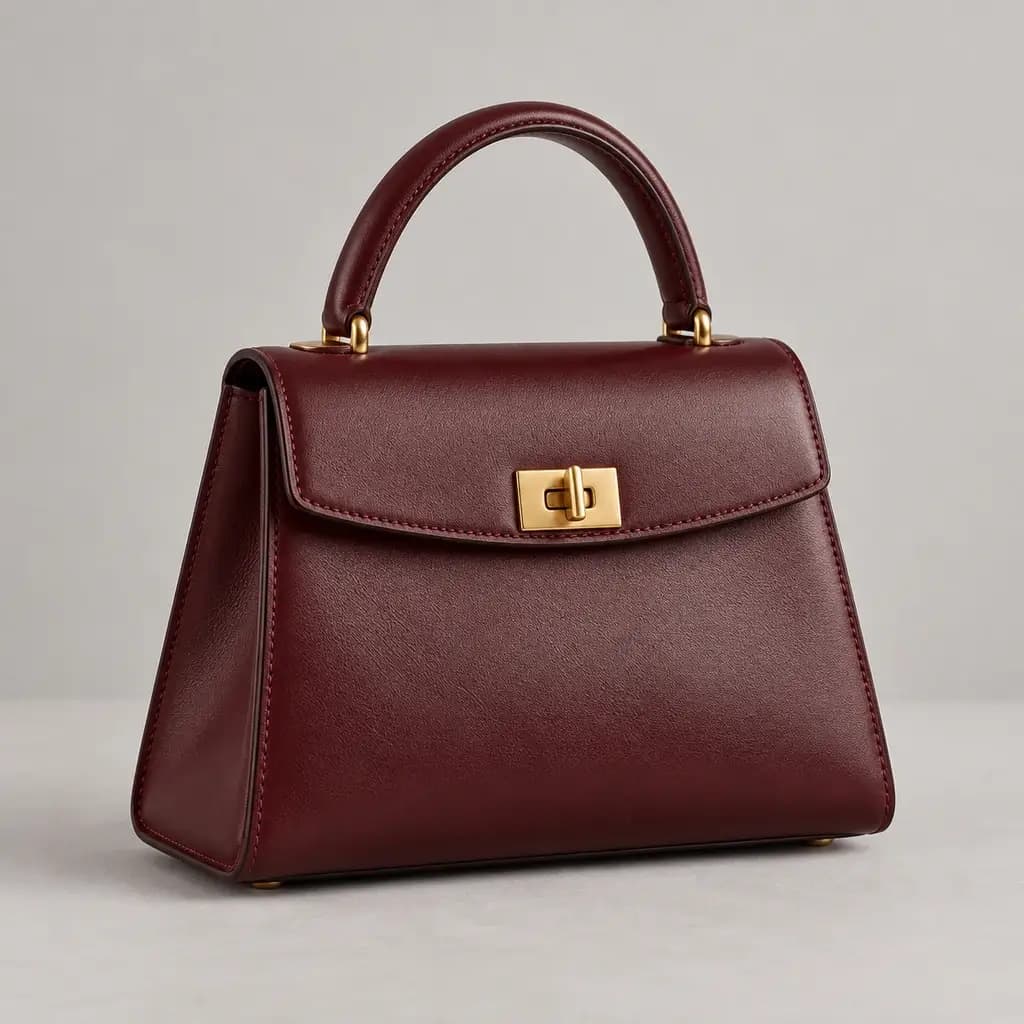
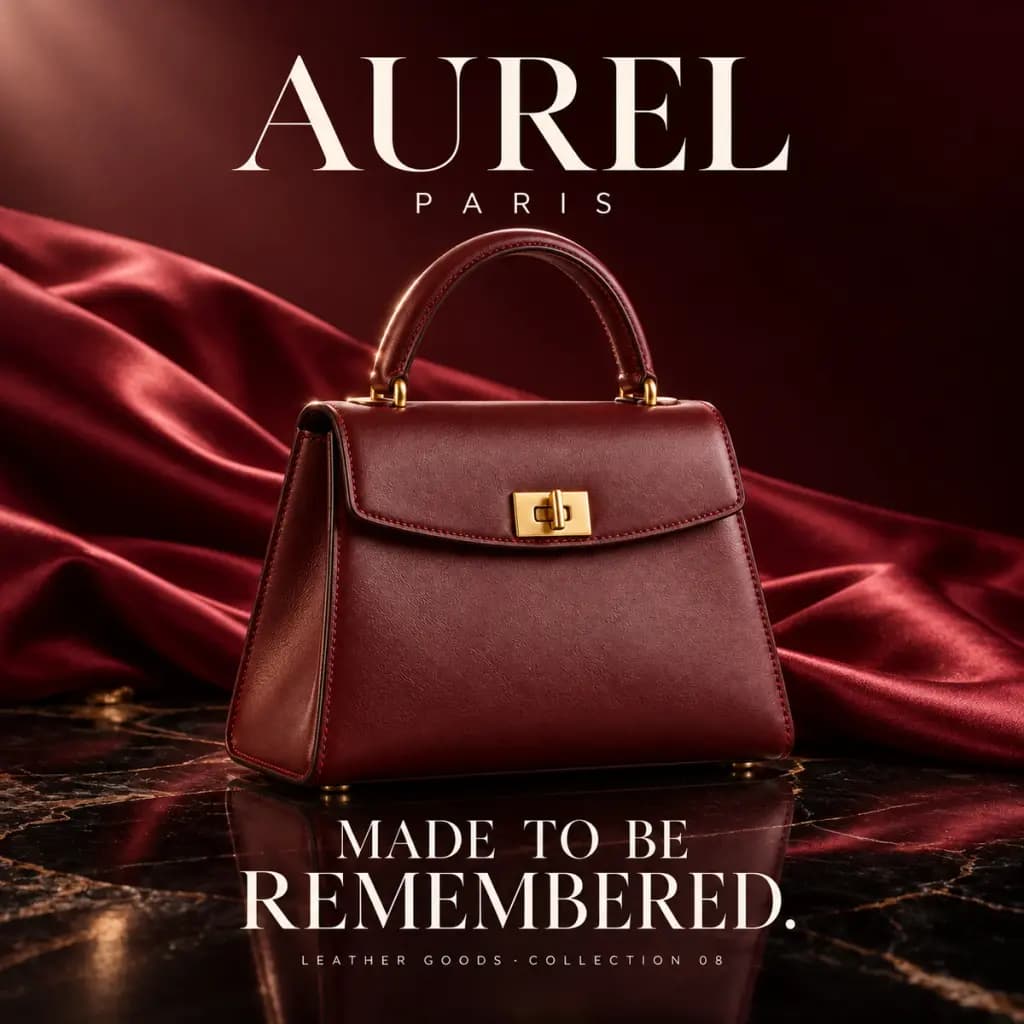
Mind Forge AI uses your product photo as a reference for a new scene. Upload a sharp image, choose a studio or lifestyle preset, and describe the lighting and surface. For a Shopify store, leave space around the product so you can crop the result for different placements.
A prompt you can adapt
Place this skincare bottle on a pale stone surface in soft window light. Keep the bottle shape, cap and label layout consistent with the reference. Leave space above and beside the product.
What to check in the result
Compare the label, logo, cap, color and proportions with the source. Review small lettering at full size. Check the store's image requirements before publishing, and use background removal when you only need a clean cutout.
How to choose a model and manage credits
First check that the current model supports the reference-image or local-editing mode you need. Start with a clear source and one output to review composition and details, then consider a higher resolution. Costs vary by model and settings; review the credits displayed in the workspace before submitting.
Choosing a model for products, portraits and local edits
Choose the task first, then check the models and settings offered in that workspace. Product scenes need a clear reference, portraits need a likeness check, and local editing needs a painted region. These are image-model settings configured on this site; the workspace determines the available options.
- Nano Banana 2.1 — 1K / 2K / 4K · Quality options Standard
- Seedream 5.0 Flash — 1K / 1.5K / 2K · Quality options Standard
- GPT Image 2.5 — 1K / 2K / 4K · Quality options Low / Medium / High / Xhigh / Max
Compare results using the same source image
Keep the source, prompt and target dimensions consistent. Record the model, quality, credits, submission time and output. Compare labels and proportions for products, facial features for portraits, and boundaries for local edits. Check suitability before comparing cost. These configuration details do not establish a quality ranking.
Explore the model directory · Check current model credit rates
Remove a product photo background · View pricing and credits
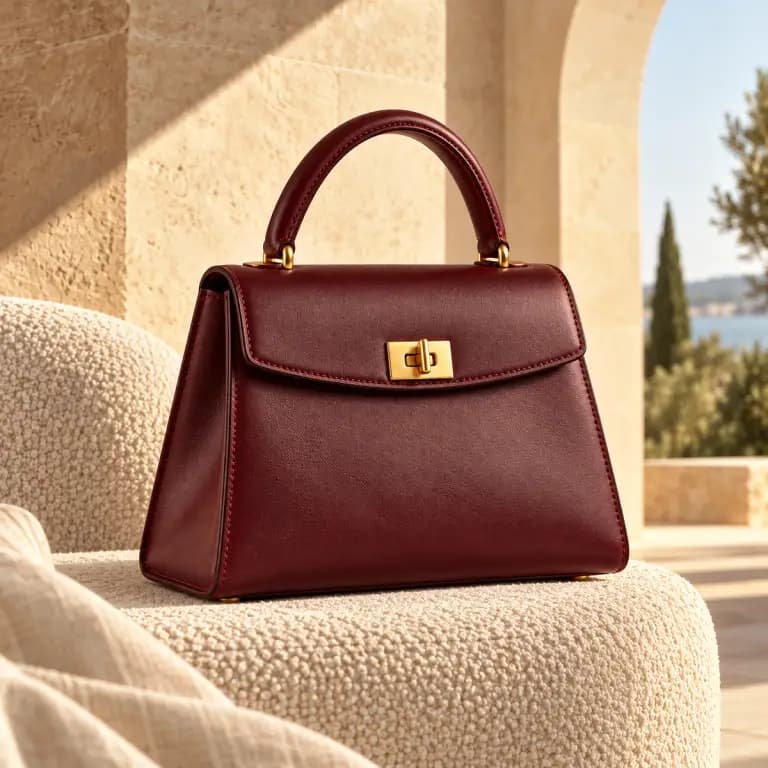
AI Product Photography Examples
Explore the visual direction of each preset. Illustrative references, not verified outputs from Mind Forge AI.
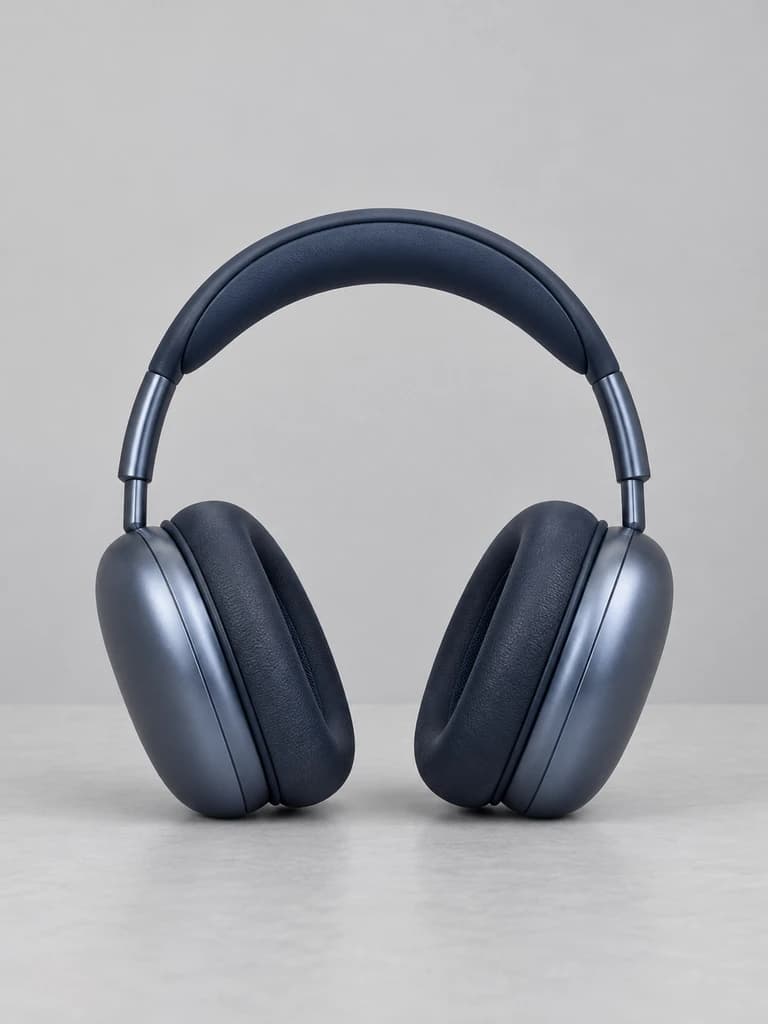
Create Studio-Style Product Images from an Existing Photo
Use a clear product reference to explore controlled lighting, clean backgrounds and new compositions. Inspect labels, shape and materials before publishing.
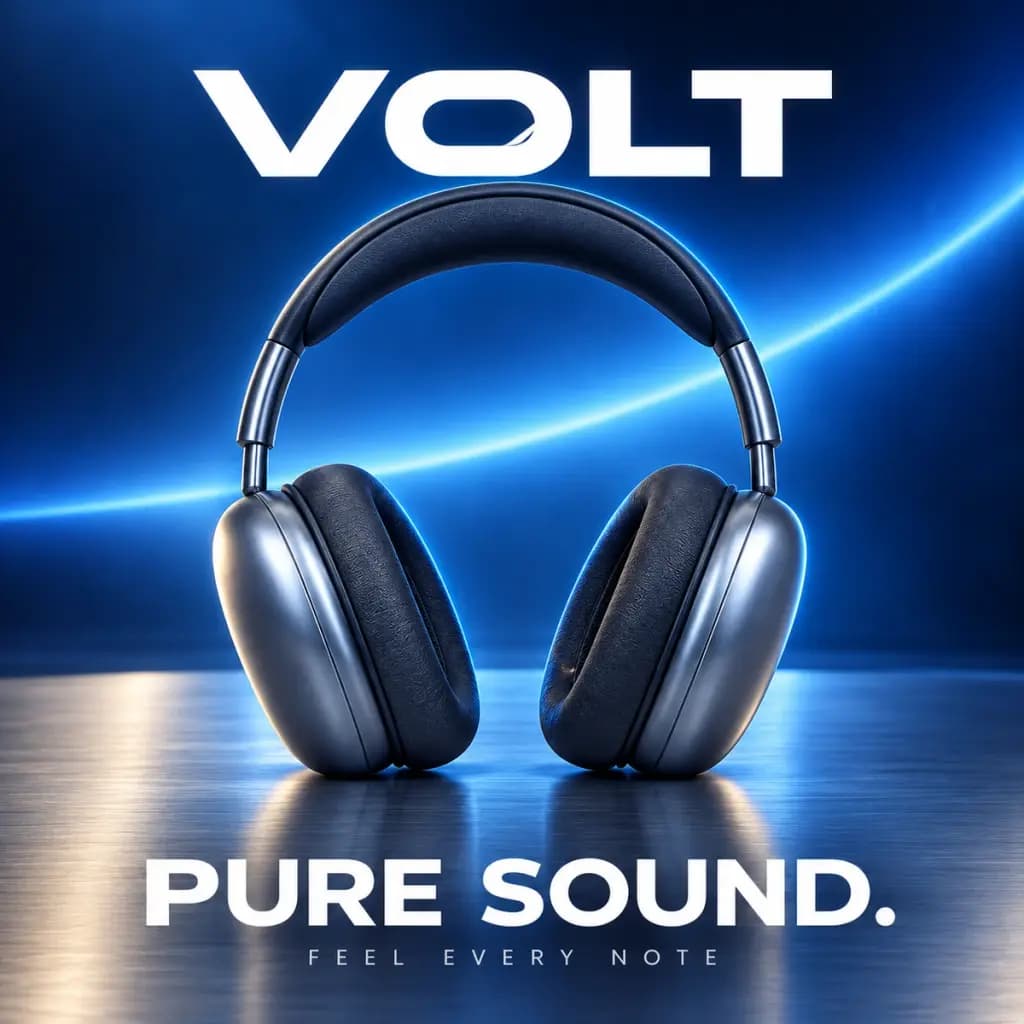
Move from Studio Shots to Lifestyle Product Photography
Place your product in an everyday setting for store banners, social posts and campaign concepts.
Explore Nine Product Photography Settings from One Upload
Compare studio, nature, luxury and other directions. Use a custom description to refine the scene and atmosphere.
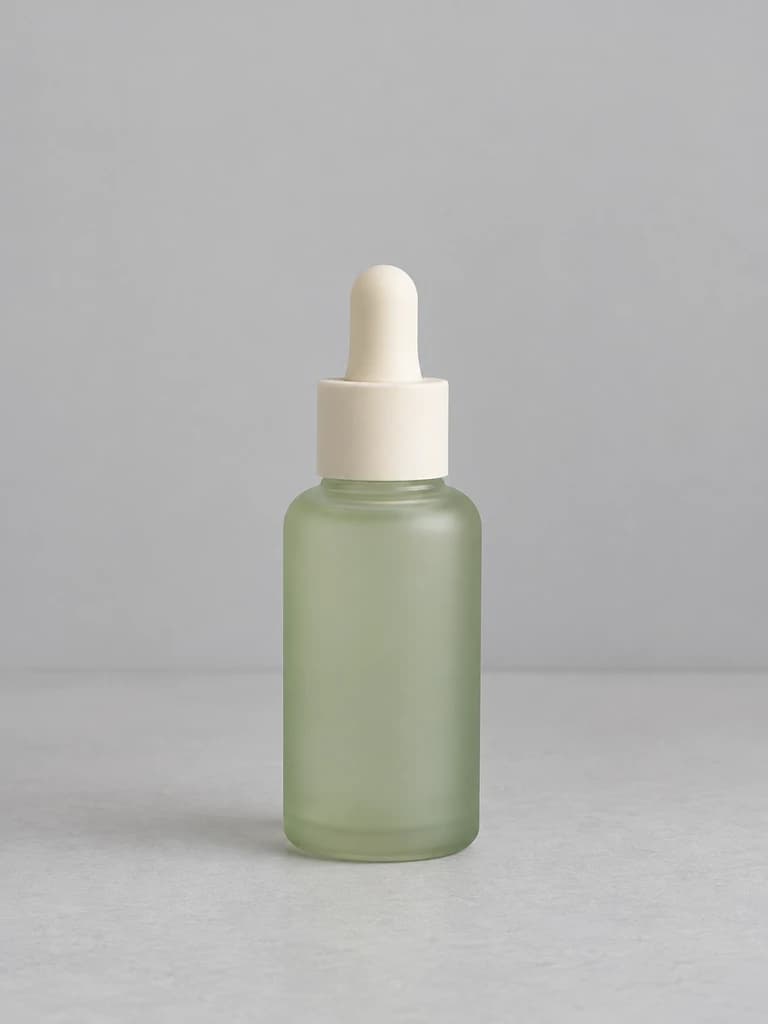
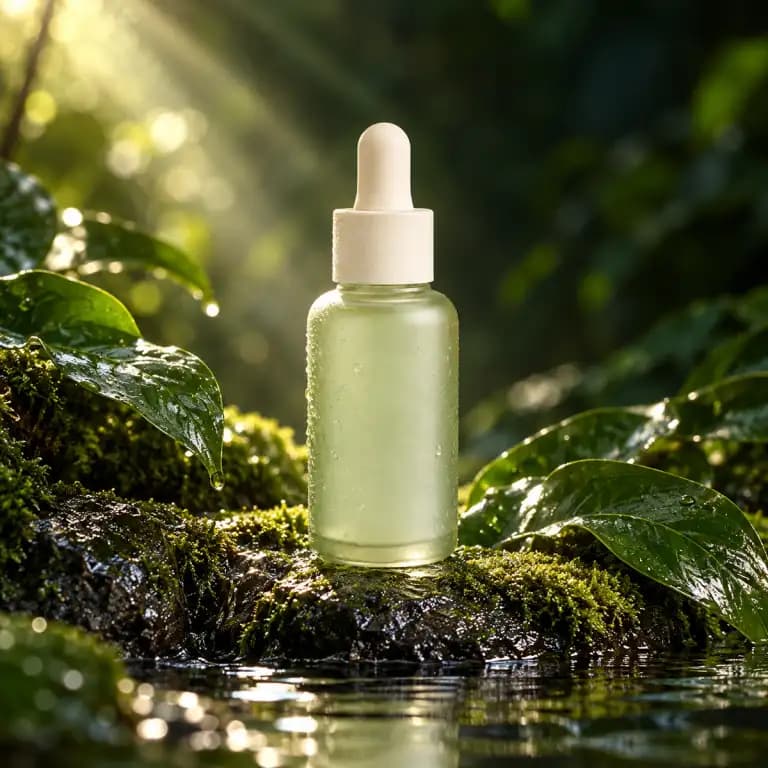
How to create product backgrounds for a Shopify store
For a skincare bottle, upload a clear front view and choose a studio setting. Leave room around the bottle for storefront crops, then compare the label and cap with the original.
Upload a photo
Choose a clear photo with the product fully visible.
Choose a style
Choose a preset or describe a custom scene. Review the credit cost.
Save or keep editing
Open your result to save it, or continue in your library.
Explore the possibilities
9 Product Photography Settings
Compare studio, nature and lifestyle directions.
Original Product Reference
Use your product’s shape, colors and materials to guide the result.
No Studio Setup Required
Explore scenes without arranging a physical shoot for every concept.
E-commerce & Social Visuals
Develop ideas for storefronts, social posts and launches.
Custom Scenes
Describe your own lighting, setting and atmosphere.
Continue Editing
Use your library and existing image tools for the next step.
AI Product Photography FAQ
Choosing photos, styles and using your results.
1 How do I create product photos with AI?
Upload a clear product photo, choose a preset or write a custom scene, review the credit cost and generate.
2 Can I use a product photo taken on my phone?
Yes. Keep the full product visible and avoid blur, glare and cropped packaging details.
3 Can I try different product backgrounds?
Choose from the nine presets or describe a custom setting.
4 How does this differ from background removal?
Product photography creates a setting and lighting. Use background removal when you need a cutout.
5 Which products can I try?
Try a clearly visible product such as a bag, skincare bottle or pair of headphones. Check generated branding and geometry carefully.
6 Can I create several scenes for one product?
Keep the uploaded reference and change the preset. Each new generation has its own credit cost.
7 Can I use it on my phone?
Yes. The upload, preset and result controls are available in your mobile browser.
8 How do I save or keep editing the result?
Open the completed image to save it, or visit your history to continue working with your images.
Related image tools
Explore more effects and ways to edit your images.